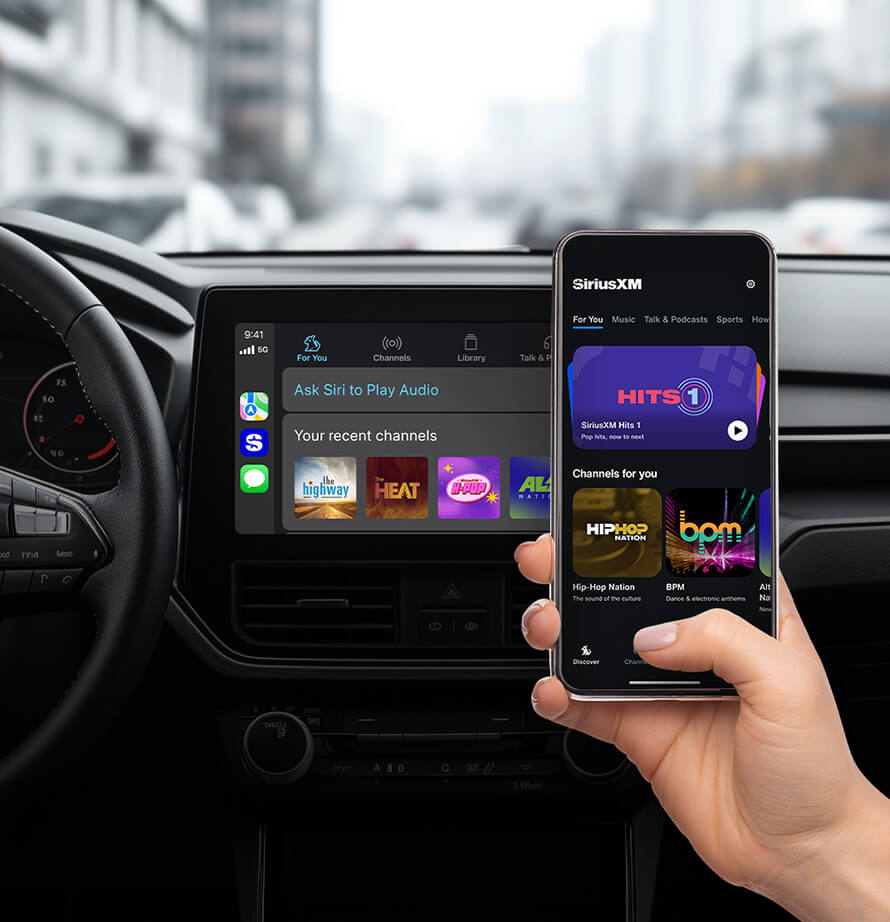
Easily access all channels and features that the SiriusXM app offers on your vehicle’s display.
3 ways to connect to Apple CarPlay
Plug your iPhone into the car’s USB port (look for a CarPlay or smartphone icon).
Plug in your iPhone once via USB.
Next time, you’ll get a prompt to connect wirelessly.
Press and hold the voice command button on your steering wheel. Ensure your car stereo is in Bluetooth or wireless mode.
On your iPhone:
2 Ways to connect to Android Auto
Plug your iPhone into the car’s USB port (look for a Android Auto or smartphone icon).
Copyright © 2026 Apple Inc. All rights reserved. Apple CarPlay® is a trademark of Apple Inc.
Android Auto is a trademark of Google LLC.
Streaming may not be available unless data is enabled; data charges may apply and are charged separately. Contact your service provider for details.